I wanted an independent way to test the connection speed to my server without relying on third-party services. LibreSpeed is an open-source speed test that you can host yourself. There is also a Go backend called speedtest-go that is self-contained and easy to deploy.
This post covers setting up speedtest-go with a systemd service and an Nginx reverse proxy.
Why self-host a speed test
Public speed test services measure the connection between you and their servers, which is useful but does not tell you much about the connection to your specific server. A self-hosted instance measures exactly what you care about: the bandwidth and latency between a client and your VPS.
It is also useful for verifying that your hosting provider delivers the bandwidth they promise.
Installing speedtest-go
Download the latest release from the GitHub releases page. Pick the binary for your architecture:
cd /tmp
wget https://github.com/librespeed/speedtest-go/releases/download/v1.1.5/speedtest-go_1.1.5_linux_amd64.tar.gz
tar xzf speedtest-go_1.1.5_linux_amd64.tar.gz
Create a directory for the application and move the files:
sudo mkdir -p /opt/speedtest
sudo mv speedtest-go /opt/speedtest/
sudo mv assets /opt/speedtest/
Configuration
Create a settings file at /opt/speedtest/settings.toml:
# Bind address and port
bind_address = "127.0.0.1"
listen_port = 8989

# Server location info (shown in the UI)
server_lat = 52.3676
server_lng = 4.9041
server_name = "Amsterdam"

# Paths
assets_path = "/opt/speedtest/assets"

# Database for storing results (optional)
database_type = "bolt"
database_file = "/opt/speedtest/speedtest.db"

# Statistics password (change this)
statistics_password = "change-me-to-something-random"

# Logging
enable_tls = false
The bind_address is set to 127.0.0.1 because Nginx will handle external connections. There is no need to expose the Go server directly.
Test that it starts correctly:
cd /opt/speedtest
./speedtest-go
You should see output indicating the server is listening on port 8989. Stop it with Ctrl+C.
Creating a systemd service
Create a dedicated user to run the service:
sudo useradd -r -s /usr/sbin/nologin speedtest
sudo chown -R speedtest:speedtest /opt/speedtest
Create the service file at /etc/systemd/system/speedtest.service:
[Unit]
Description=LibreSpeed speedtest-go
After=network.target

[Service]
Type=simple
User=speedtest
Group=speedtest
WorkingDirectory=/opt/speedtest
ExecStart=/opt/speedtest/speedtest-go
Restart=on-failure
RestartSec=5

# Hardening
NoNewPrivileges=true
ProtectSystem=strict
ProtectHome=true
ReadWritePaths=/opt/speedtest
PrivateTmp=true

[Install]
WantedBy=multi-user.target
Enable and start the service:
sudo systemctl daemon-reload
sudo systemctl enable speedtest
sudo systemctl start speedtest
sudo systemctl status speedtest
Check that it is running:
curl -s http://127.0.0.1:8989 | head -20
You should see HTML output from the speed test interface.
Nginx reverse proxy
Add a server block for the speed test. If you want to serve it on a subdomain like speed.packetlog.org, create /etc/nginx/sites-available/speedtest:
server {
    listen 80;
    listen [::]:80;
    server_name speed.packetlog.org;

    location / {
        proxy_pass http://127.0.0.1:8989;
        proxy_set_header Host $host;
        proxy_set_header X-Real-IP $remote_addr;
        proxy_set_header X-Forwarded-For $proxy_add_x_forwarded_for;
        proxy_set_header X-Forwarded-Proto $scheme;

        # Speed test needs larger body sizes for upload tests
        client_max_body_size 100M;
    }
}
Enable the site and reload Nginx:
sudo ln -s /etc/nginx/sites-available/speedtest /etc/nginx/sites-enabled/
sudo nginx -t
sudo systemctl reload nginx
If you are using Let’s Encrypt, get a certificate for the subdomain:
sudo certbot --nginx -d speed.packetlog.org
The web interface
Once everything is running, visit https://speed.packetlog.org in a browser. The default LibreSpeed interface shows:
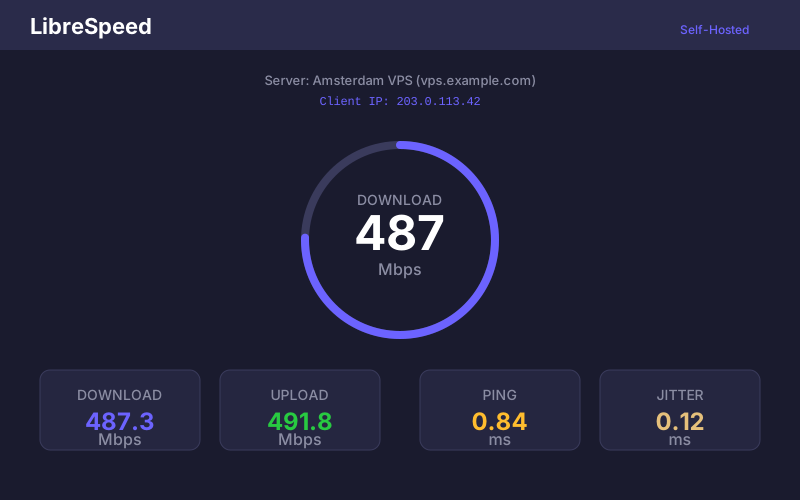
The interface measures:
- Download speed — server to client bandwidth
- Upload speed — client to server bandwidth
- Ping — round-trip latency
- Jitter — variation in latency
Results are stored in the database if you configured one. You can view historical results at the /stats endpoint (protected by the statistics_password from the config).
Resource usage
speedtest-go is lightweight at idle — about 10 MB of RAM. During an active test it uses more, but this is temporary and proportional to the configured test size. On a small VPS, it coexists comfortably with other services.
CPU usage spikes briefly during tests because the server is generating and consuming data at line speed. On a 1 vCPU machine, expect the CPU to be fully utilized during an active speed test. This is normal and lasts only a few seconds.
Verifying the setup
After everything is running, it is worth doing a few sanity checks.
First, make sure the service survives a reboot:
sudo reboot
# After reboot:
systemctl status speedtest
Check that the Nginx proxy is working correctly by looking at the response headers:
curl -I https://speed.packetlog.org
You should see a 200 status code and headers from Nginx (not directly from the Go server). If you get a 502 Bad Gateway, the speedtest-go process is not running or is listening on a different port than Nginx expects.
Run a test from your browser and then verify the result was stored:
curl -s http://127.0.0.1:8989/stats | head
If you configured the bolt database, you should see JSON output with your test result.
Firewall considerations
Since speedtest-go binds to 127.0.0.1, it is not directly accessible from outside. All traffic goes through Nginx. Make sure your firewall allows HTTP (80) and HTTPS (443) but does not expose port 8989:
sudo ufw status
If you are using ufw, the default rules for Nginx should be sufficient:
sudo ufw allow 'Nginx Full'
Restricting access
If you do not want the speed test to be publicly accessible, you can add basic authentication in Nginx:
sudo apt install apache2-utils
sudo htpasswd -c /etc/nginx/.htpasswd speedtest
Then add to the Nginx location block:
auth_basic "Speed Test";
auth_basic_user_file /etc/nginx/.htpasswd;
Alternatively, you can restrict by IP if you only need access from specific locations.
Automating tests
For ongoing monitoring, you can run speed tests from the command line. The speed test API accepts requests that can be scripted:
# Quick download test using curl
curl -o /dev/null -s -w "%{speed_download}" https://speed.packetlog.org/backend/garbage?ckSize=100

# The result is in bytes per second
For more structured testing from remote locations, I cover that in a separate post.
Wrapping up
The whole setup takes about 15 minutes. speedtest-go is a well-maintained project with a clean interface and minimal dependencies. Having your own speed test endpoint is useful for troubleshooting, verifying hosting provider performance, and establishing baseline measurements for your server’s connectivity.