When something is slow or unreachable on the network, the first instinct is to blame the server. But the problem is often somewhere in between. These are the tools I reach for when I need to figure out where packets are getting lost or delayed.
Traceroute basics
Traceroute shows the path packets take from your machine to a destination. It works by sending packets with increasing TTL (Time to Live) values. Each router along the path decrements the TTL by one, and when it reaches zero, that router sends back an ICMP Time Exceeded message. This reveals each hop.
traceroute packetlog.org
On Linux, traceroute sends UDP packets by default. On Windows, tracert uses ICMP. This matters because some routers treat ICMP and UDP differently. You can force ICMP on Linux:
traceroute -I packetlog.org
Or use TCP, which is useful when ICMP is filtered:
traceroute -T -p 443 packetlog.org
A typical output looks like this:
 1  gateway (192.168.1.1)  1.234 ms  1.112 ms  1.098 ms
 2  10.10.0.1 (10.10.0.1)  3.456 ms  3.321 ms  3.298 ms
 3  core-router.isp.net (203.0.113.1)  8.765 ms  8.654 ms  8.601 ms
 4  * * *
 5  peer-link.transit.net (198.51.100.5)  15.432 ms  15.321 ms  15.287 ms
 6  edge.datacenter.net (198.51.100.20)  18.123 ms  18.045 ms  17.998 ms
 7  packetlog.org (203.0.113.10)  18.234 ms  18.156 ms  18.089 ms
Each line is a hop. The three values are round-trip times for three probes. Asterisks (* * *) mean the router did not respond, which is common and not necessarily a problem. Many routers are configured to drop ICMP or rate-limit responses.
Reading traceroute output
A few patterns I have learned to look for:
Sudden latency jump. If latency goes from 10 ms to 80 ms at a specific hop and stays high for the rest of the path, the link between those two hops is likely the bottleneck. Possibly an intercontinental link, which is expected.
Latency spike at one hop, then back to normal. This usually means that specific router is slow at generating ICMP responses but is forwarding traffic just fine. The router’s control plane is separate from its forwarding plane. Do not assume this hop is the problem.
Packet loss at intermediate hops only. If you see loss at hop 5 but hop 6 and the destination are fine, the router at hop 5 is probably rate-limiting ICMP. Not a real issue.
Packet loss at the final hop. This is more concerning. It could indicate the destination server is overloaded or there is congestion on the last-mile link.
MTR: traceroute with statistics
MTR combines traceroute and ping into a single tool. It continuously sends probes and builds a statistical picture over time, which makes it far more useful than a single traceroute snapshot.
mtr packetlog.org
The interactive display updates in real time. For a report you can share or save:
mtr -r -c 100 packetlog.org
This sends 100 probes and outputs a summary. A typical report:
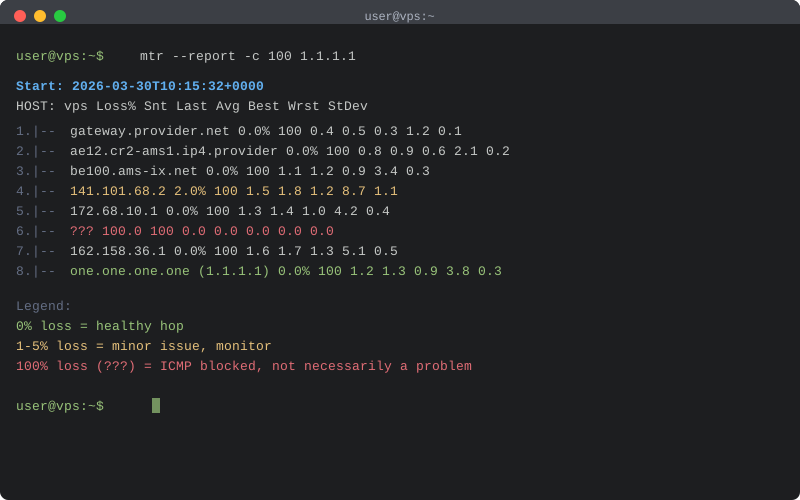
HOST: myserver                 Loss%   Snt   Last   Avg  Best  Wrst StDev
  1.|-- gateway                 0.0%   100    0.5   0.6   0.4   1.2   0.1
  2.|-- isp-core.example.net    0.0%   100    3.2   3.4   2.9   5.1   0.3
  3.|-- transit-peer.example.n  0.0%   100   12.1  12.3  11.8  14.2   0.4
  4.|-- ???                    100.0   100    0.0   0.0   0.0   0.0   0.0
  5.|-- dc-edge.example.net     0.0%   100   18.4  18.6  18.1  20.3   0.3
  6.|-- packetlog.org          0.0%   100   18.5  18.7  18.2  20.5   0.3
The columns that matter most:
- Loss% — Percentage of probes that got no response. Look at the final destination, not intermediate hops.
- Avg — Average round-trip time. Compare this across hops to find where latency is introduced.
- StDev — Standard deviation. High StDev means inconsistent latency, which can indicate congestion or route flapping.
Installing MTR
On Debian and Ubuntu:
sudo apt install mtr-tiny
The mtr-tiny package is the ncurses version without a GTK dependency. On RHEL-based systems:
sudo dnf install mtr
MTR needs root or appropriate capabilities to send raw packets. You can either run it with sudo or set the capability:
sudo setcap cap_net_raw+ep /usr/bin/mtr-packet
Looking glasses
A looking glass is a web-based tool hosted by a network operator that lets you run traceroute, ping, or BGP queries from their network. This is invaluable when you want to test connectivity from a location other than your own.
Some looking glasses I find useful:
- NLNOG Looking Glass — Run from the NLNOG ring nodes distributed worldwide.
- Hurricane Electric Looking Glass — BGP route info and traceroute from HE’s extensive network.
- Lumen / Level3 Looking Glass — Useful for testing from a major Tier 1 network.
- RIPE RIS Looking Glass — More focused on BGP and route visibility.
These are particularly useful when a user reports they cannot reach your server. You can run a traceroute from a network close to theirs and see where the path breaks.
Combining the tools
My typical workflow when investigating a connectivity issue:
- Run
mtr -r -c 50 destinationfrom my server to the reported problem area. This gives the forward path. - Ask the affected user (or use a looking glass near them) to run a traceroute back to my server. The return path can be completely different.
- Check if the issue is at a peering point between two networks. This is common and usually resolves on its own as traffic engineering adjusts.
If the problem is clearly within a transit provider’s network, there is not much you can do except wait or contact them. If the problem is on the last hop before your server, check your server’s network interface, firewall rules, and load.
Useful flags
A few mtr options I use regularly:
# Use TCP instead of ICMP (useful when ICMP is filtered)
mtr -T -P 443 packetlog.org

# Use UDP
mtr -u packetlog.org

# Set packet size (helps detect MTU issues)
mtr -s 1400 packetlog.org

# Show IP addresses instead of hostnames (faster)
mtr -n packetlog.org
For traceroute, the Paris traceroute variant is worth knowing about. Classic traceroute can show false paths because load balancers distribute probes across different routes. Paris traceroute keeps flow identifiers consistent:
sudo apt install paris-traceroute
paris-traceroute packetlog.org
When to worry
Not every anomaly in a traceroute is a problem. Networks are complex, and routers make independent decisions about ICMP handling. Focus on what matters: can the destination be reached, what is the latency to the destination, and is there packet loss at the destination.
If everything looks fine in the traceroute but the application is still slow, the issue is likely above the network layer. Check DNS resolution time, TLS handshake overhead, or server-side processing. Tools like curl -w with timing variables are helpful there:
curl -o /dev/null -s -w "dns: %{time_namelookup}s\nconnect: %{time_connect}s\ntls: %{time_appconnect}s\ntotal: %{time_total}s\n" https://packetlog.org
Network diagnostics are about narrowing down where the problem is, not necessarily fixing it. Half the time, the answer is “it is not your network” — which is still useful information.