Running a speed test from your own machine tells you about one path. To get a broader picture of your server’s connectivity, you need to test from multiple locations. Here are the approaches I use.
ping.pe
ping.pe is one of the simplest tools for this. Enter your server’s IP or hostname and it runs ping, MTR, and port checks from dozens of locations simultaneously. The results show up in a live grid.
What I find most useful is the MTR view. It runs a full MTR from each location to your server, so you can see the complete path and identify which routes have issues. If your server is reachable from Frankfurt and London but has high latency from Singapore, the MTR will show you where the path diverges and where the delay is introduced.
The ping results give a quick overview of baseline latency from each region:
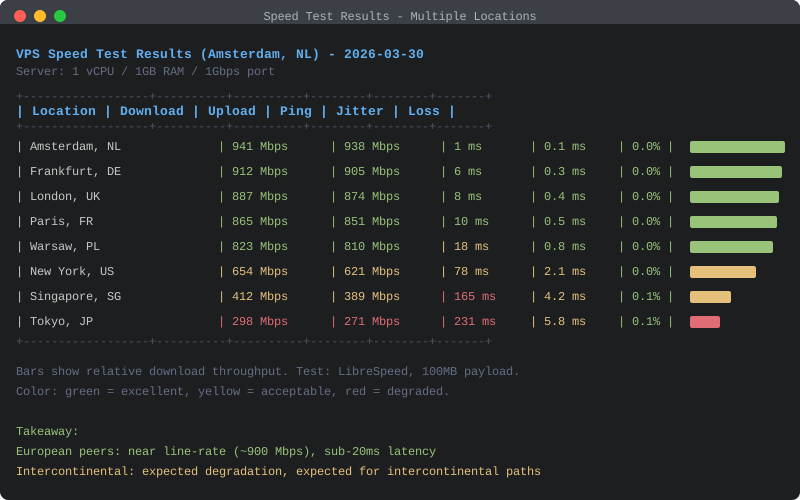
For a server in Amsterdam, I typically see:
- Western Europe: 5-15 ms
- Eastern Europe: 20-40 ms
- US East Coast: 75-90 ms
- US West Coast: 140-160 ms
- Asia Pacific: 200-280 ms
These numbers are useful as a baseline. If latency from a region suddenly increases, you have a reference point to compare against.
Speedtest Tracker
Speedtest Tracker is a self-hosted application that runs periodic speed tests and stores the results. It uses the Ookla speedtest CLI under the hood, testing from your server to the nearest Ookla servers.
This tests the opposite direction from a self-hosted LibreSpeed instance. LibreSpeed measures from a client to your server. Speedtest Tracker measures from your server to external test endpoints. Both are useful.
Installation with Docker:
docker run -d \
    --name speedtest-tracker \
    -p 8080:80 \
    -v /opt/speedtest-tracker:/config \
    -e PUID=1000 \
    -e PGID=1000 \
    -e DB_CONNECTION=sqlite \
    ghcr.io/alexjustesen/speedtest-tracker:latest
The web interface shows historical graphs of download speed, upload speed, and latency. You can configure test intervals and select specific Ookla servers to test against.
curl timing from remote hosts
If you have access to machines in different locations (other VPS instances, cloud shells, etc.), a simple curl timing test gives you real-world download measurements:
curl -o /dev/null -s -w "connect: %{time_connect}s\ntls: %{time_appconnect}s\nttfb: %{time_starttransfer}s\ntotal: %{time_total}s\nspeed: %{speed_download} bytes/s\n" https://packetlog.org/test-file
To make this more meaningful, create a test file of known size:
dd if=/dev/urandom of=/var/www/html/test-100m.bin bs=1M count=100
Then download it from your remote locations. This gives you the actual throughput a real client would experience, including TLS overhead.
Cloud shell trick
Most cloud providers offer free browser-based shells. Google Cloud Shell, AWS CloudShell, and Oracle Cloud Shell all provide terminal access from their respective data center locations. These are useful for quick ad-hoc tests without maintaining your own machines everywhere.
# From Google Cloud Shell (US)
mtr -r -c 20 packetlog.org

# Or a download test
curl -o /dev/null -s -w "%{speed_download}\n" https://packetlog.org/test-100m.bin
What the results tell you
The numbers themselves are less important than the patterns. Things I look for:
Consistent performance within a region. If most European locations show similar latency but one is an outlier, there might be a routing issue with that specific network path.
Asymmetric speeds. Upload and download speeds between your server and a test point should be roughly similar (within the limits of the path). If download is fast but upload is slow, or vice versa, it could indicate congestion on one direction of a link.
Time-of-day variation. Network performance can vary significantly by time of day due to usage patterns. Running tests at different hours helps distinguish between a persistent problem and peak-hour congestion.
Degradation over time. If your speed test results gradually worsen, it might indicate your hosting provider is overcommitting resources, or there has been a routing change that affected your server’s connectivity.
My setup
I run a LibreSpeed instance for on-demand testing from my browser and Speedtest Tracker for automated periodic measurements. For geographic coverage, I use ping.pe and occasional manual tests from cloud shells. The combination covers most troubleshooting scenarios without being overly complicated.
The goal is not to obsess over numbers but to have enough data to identify problems quickly when they occur and to verify that your hosting provider is delivering what they promised.